

Magento2

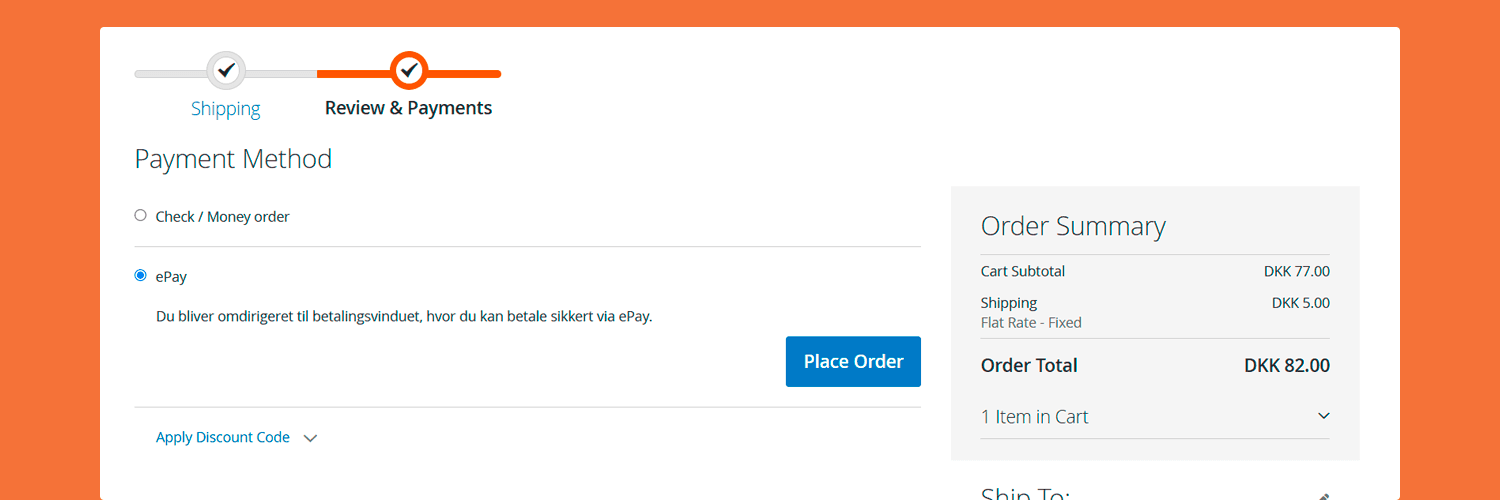
Use this guide if your webshop runs on Magento 2.
The Magento 2 module is the fastest way to add ePay to an existing Magento shop without building a custom integration. You install the module with Composer, enable it in Magento, add your test credentials and place a test order.
What you will do
In this guide, you will:
Install the ePay module with Composer
Open the Magento payment settings
Add your test API key and test Point of Sale ID
Place a test order in your storefront
Confirm that Magento updates the order correctly
Before you start
You need:
- A Magento 2 installation
- SSH access to the Magento server
- Composer installed on the server
- Access to Magento Admin
- Access to ePay Backoffice
- An API key
- A test Point of Sale ID
If you still need your credentials, see Set up your account.
Before installing a new module on a live shop, take a backup first.
Step 1: Install the module with Composer
SSH into your Magento server and go to your Magento root directory.
Install the module:
composer require epay/magento2-epic-payment-moduleThen run:
php bin/magento setup:upgradephp bin/magento cache:flushIf your shop runs in production mode, also run:
php bin/magento setup:di:compilephp bin/magento setup:static-content:deploy -fThis makes sure Magento picks up the new module and refreshes generated code and static assets.
Step 2: Open the Magento payment settings
After installation, log in to Magento Admin and open:
Stores -> Configuration -> Sales -> Payment Methods
Find ePay in the list and expand the configuration section.
This is where you connect Magento to ePay.
Step 3: Add your ePay test credentials
In the module settings, add:
| Value | What to use while testing |
|---|---|
| API key | Your test API key |
| Point of Sale ID | Your test Point of Sale ID |
Use test values while setting up the module.
Do not mix test and live values. A live API key with a test Point of Sale ID, or the other way around, will usually cause checkout problems.
Step 4: Review the key module settings
Start with the minimum setup that gets checkout working.
The most important settings are:
| Setting | What it does |
|---|---|
| Enabled | Turns the ePay payment method on in checkout |
| API key | Connects Magento to your ePay account |
| Point of Sale ID | Tells ePay which webshop or sales channel the payment belongs to |
| Instant capture | Captures the payment immediately after authorization |
If you are testing order flow first, keep the setup simple and only change the settings you need.
Step 5: Save the config and refresh Magento
Save the configuration in Magento Admin.
If Magento asks you to refresh caches, do that before testing checkout.
A safe follow-up command is:
php bin/magento cache:flushStep 6: Place a test order
Go through your storefront like a normal customer:
Add a product to the cart
Go to checkout
Choose ePay as the payment method
Place the order
Complete the payment in the ePay payment window
After the payment finishes, the customer should return to your Magento storefront.
Step 7: Check the Magento order
Open the order in Magento Admin and confirm that:
- The order was created correctly
- The payment was attached to the correct order
- The order status changed as expected
- The transaction is visible in Magento
Also check ePay Backoffice to confirm that the transaction was received.
Common problems
The payment method does not appear in checkout
Check that:
- The module is installed correctly
- The payment method is enabled in Magento Admin
- The API key is correct
- The Point of Sale ID is correct
- You are using test values consistently
The module was installed, but Magento does not pick it up
Check that:
composer requirecompleted successfullyphp bin/magento setup:upgradewas run- Magento caches were flushed
- Production mode shops were recompiled and had static content deployed
The payment window does not open
Check that:
- The webshop domain is registered on the Point of Sale
- The module credentials match the same environment
- Checkout has no conflicting customizations or third-party extensions
The payment succeeds, but the order is not updated
Check that:
- Magento can receive the payment result correctly
- Your site is publicly reachable during testing
- The module settings were saved correctly
- The order status behavior matches your Magento configuration
What you built
You have now connected Magento 2 to ePay and completed your first test payment through the module.
Before going live, also test:
- A successful payment
- A failed payment
- A cancelled payment
- The full customer return flow
- Capture behavior, if you use instant capture