

Shopify

Use this guide if your webshop runs on Shopify.
The Shopify app is the fastest way to add ePay to your store. You install the app from the Shopify App Store, connect it to your ePay account, choose your payment methods and place a test order.
If you only want MobilePay as a standalone payment method, you can install the dedicated MobilePay app instead of the full ePay app.
What you will do
In this guide, you will:
Before you start
You need:
- A Shopify store
- Access to Shopify Admin
- Access to ePay Backoffice
- An API key
- A test Point of Sale ID
- A live API key
- A live Point of Sale ID
If you still need your credentials, see Set up your account.
Step 1: Choose the right Shopify app
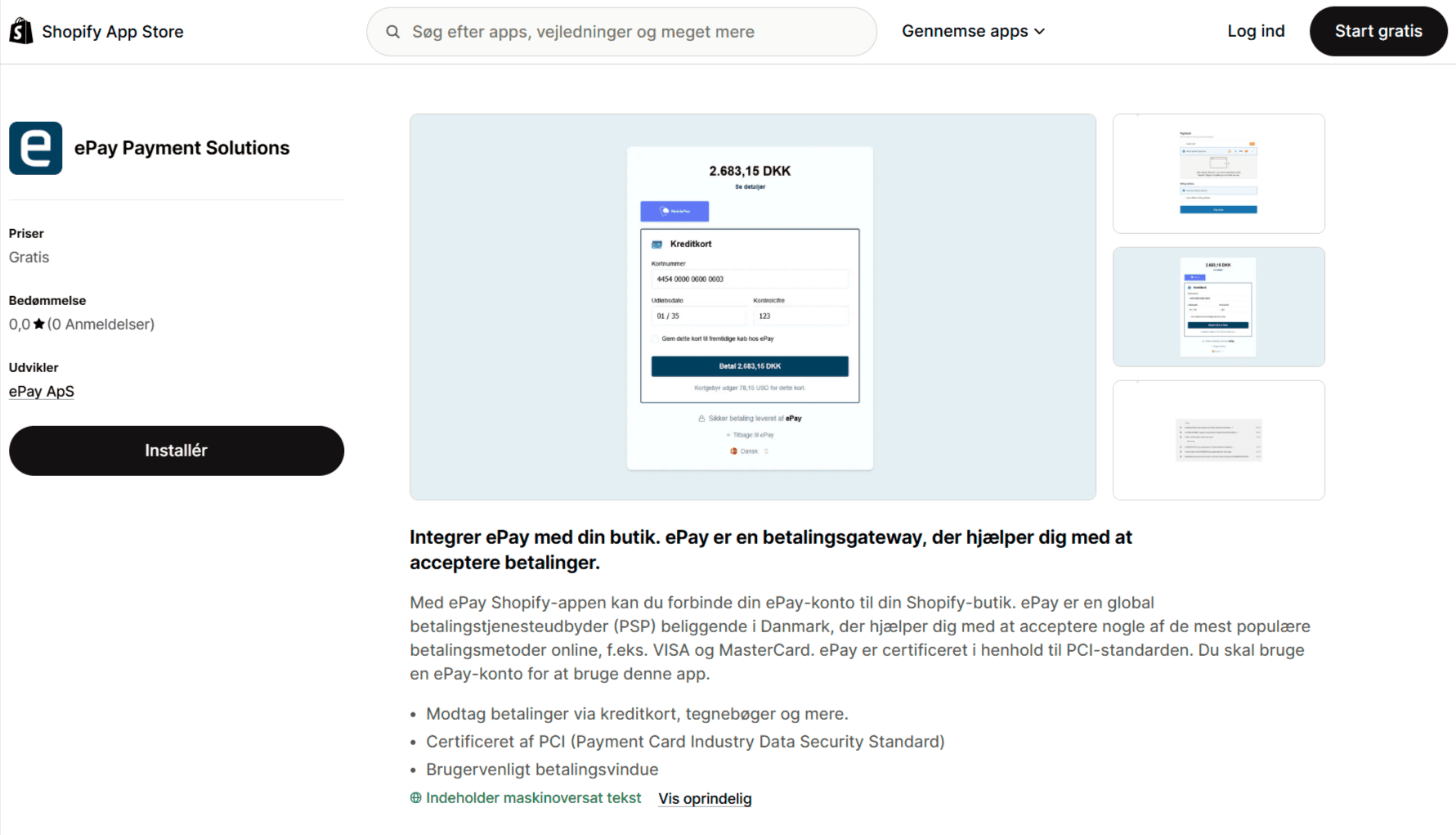
You have two installation paths:
- Use the full ePay app if you want card payments and other supported payment methods: ePay Payment Solutions
- Use the dedicated MobilePay app if you only want MobilePay as a standalone payment method: MobilePay ePay
For most stores, the full ePay app is the best starting point.
Step 2: Install the app from the Shopify App Store
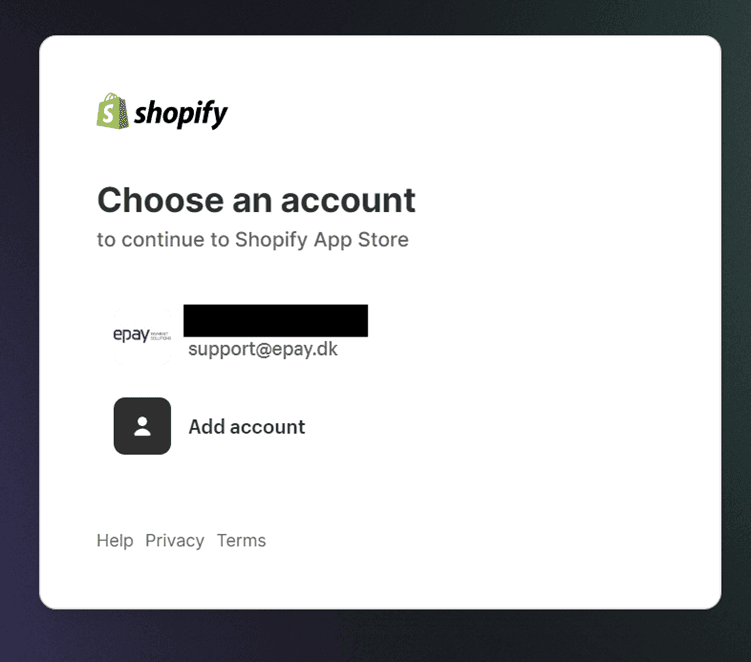
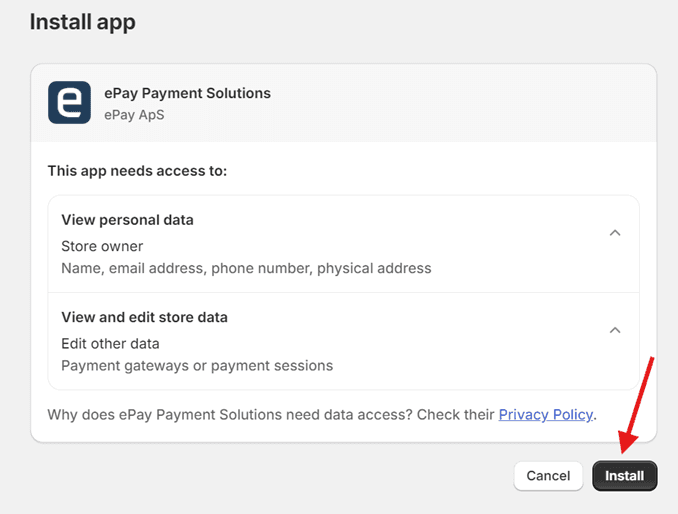
Open the app page in the Shopify App Store and click Install.
Then:
After installation, Shopify opens the app inside your store admin.
Step 3: Add your ePay account details
In the app settings, add your ePay credentials.
The required values are:
| Value | What it is used for |
|---|---|
| Production API key | Live payments |
| Production Point of Sale ID | Live payments |
| Test API key | Test payments |
| Test Point of Sale ID | Test payments |
You can find these values in ePay Backoffice.
Make sure the app is enabled after entering the required fields.
Step 4: Review the key app settings
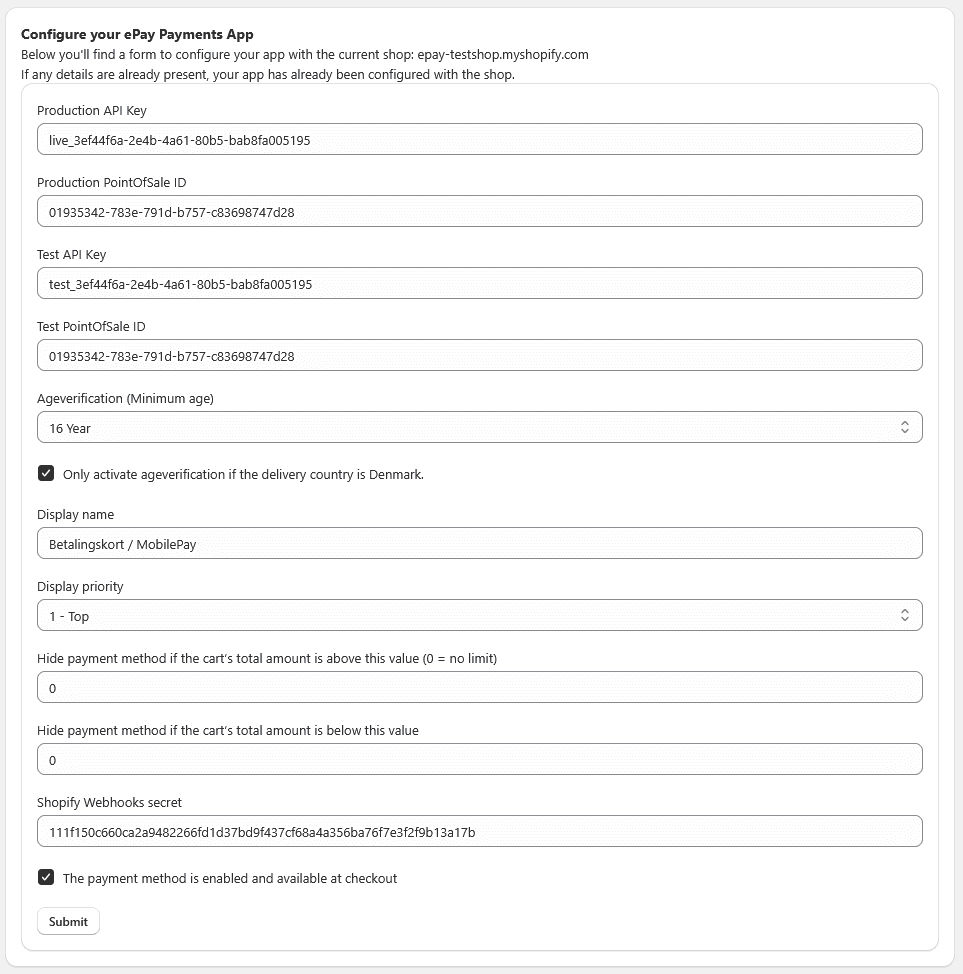
Start with the minimum setup that gets checkout working.
The most important settings are:
| Setting | What it does |
|---|---|
| Age verification | Sets a minimum age check, if required |
| Only activate age verification for Denmark | Limits the age check to Danish delivery addresses |
| Display name | Controls the payment method name shown in checkout |
| Display priority | Controls the order of the payment method in checkout |
| Hide payment method above amount | Hides the method for carts above a limit |
| Hide payment method below amount | Hides the method for carts below a limit |
| Shopify Webhooks secret | Used together with the Shopify webhook setup |
| Enabled | Makes the payment method available in checkout |
Keep the initial setup simple. You can tune display rules and naming after the first successful payment.
Step 5: Choose payment methods
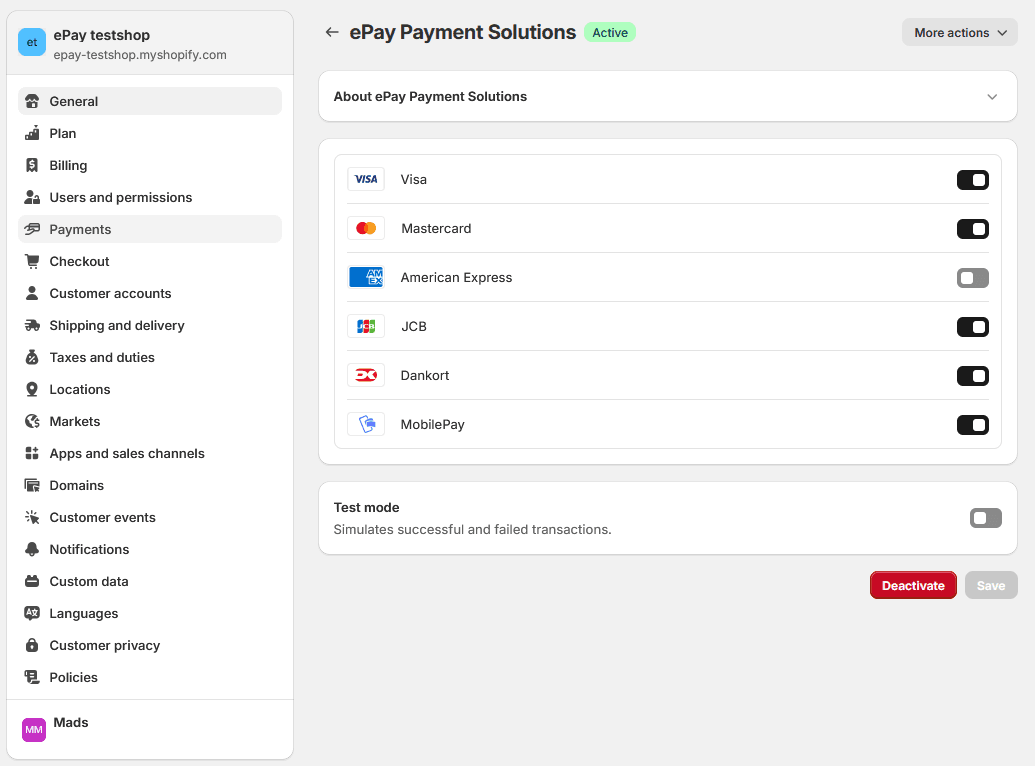
If you use the full ePay app, choose the payment methods you want to show in checkout.
Only enable payment methods you already have agreements for.
If you use the dedicated MobilePay app, select MobilePay as the payment method.
Step 6: Configure the Shopify order webhook
Set up a Shopify webhook so the order number can be passed correctly to ePay.
In Shopify Admin:
Go to Settings -> Notifications
Choose the Order creation event
Set the format to JSON
https://yfipohs.epay.eu/app/orderwebhookIf the app uses a webhook secret, make sure the value matches your Shopify setup.
Step 7: Place a test order
Go through your storefront like a normal customer:
Choose the ePay payment method, or MobilePay if you installed the dedicated app
After the payment finishes, the customer should return to your Shopify storefront.
Step 8: Check the result
Confirm that:
- The payment method appears correctly in checkout
- The order was created in Shopify
- The payment was attached to the correct order
- The transaction is visible in ePay Backoffice
If you are using test values, make sure the test flow works before switching to live values.
Edit the app later
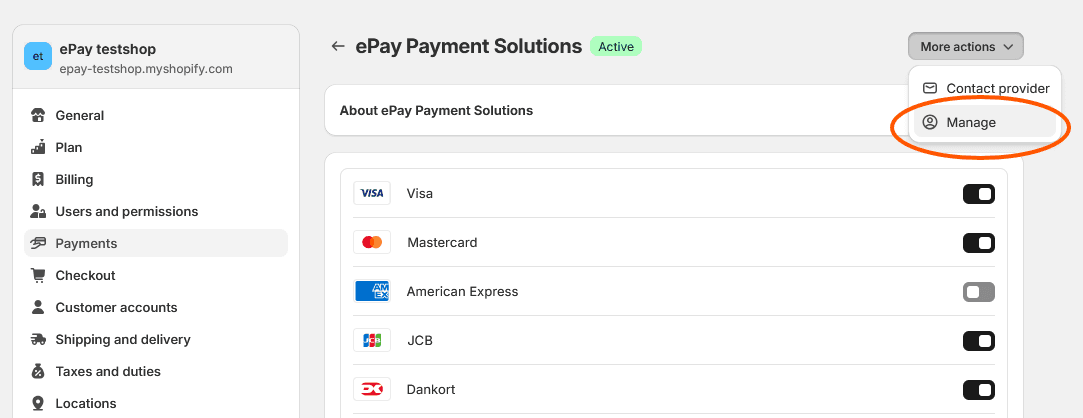
To change your ePay settings later, open the installed app in Shopify and use More actions -> Manage, if available in your app view.
Common problems
The payment method does not appear in checkout
Check that:
- The app is installed correctly
- The payment method is enabled
- The display rules are not hiding the method
- The API key is correct
- The Point of Sale ID is correct
The wrong payment methods are shown
Check that:
- You only enabled payment methods you have agreements for
- The correct app is installed
- Display priority and visibility settings match your intended checkout setup
The payment works, but the order data is incomplete
Check that:
- The Shopify order creation webhook was created
- The webhook URL is correct
- The webhook format is set to
JSON - The webhook secret matches the app configuration, if used
Test mode and live mode behave differently
Check that:
- Test API key is paired with test Point of Sale ID
- Live API key is paired with live Point of Sale ID
- You did not switch only one of the values
What you built
You have now connected Shopify to ePay and completed the first setup of your payment app.
Before going live, also test:
- A successful payment
- A failed payment
- A cancelled payment
- The full customer return flow
- The webhook-driven order flow